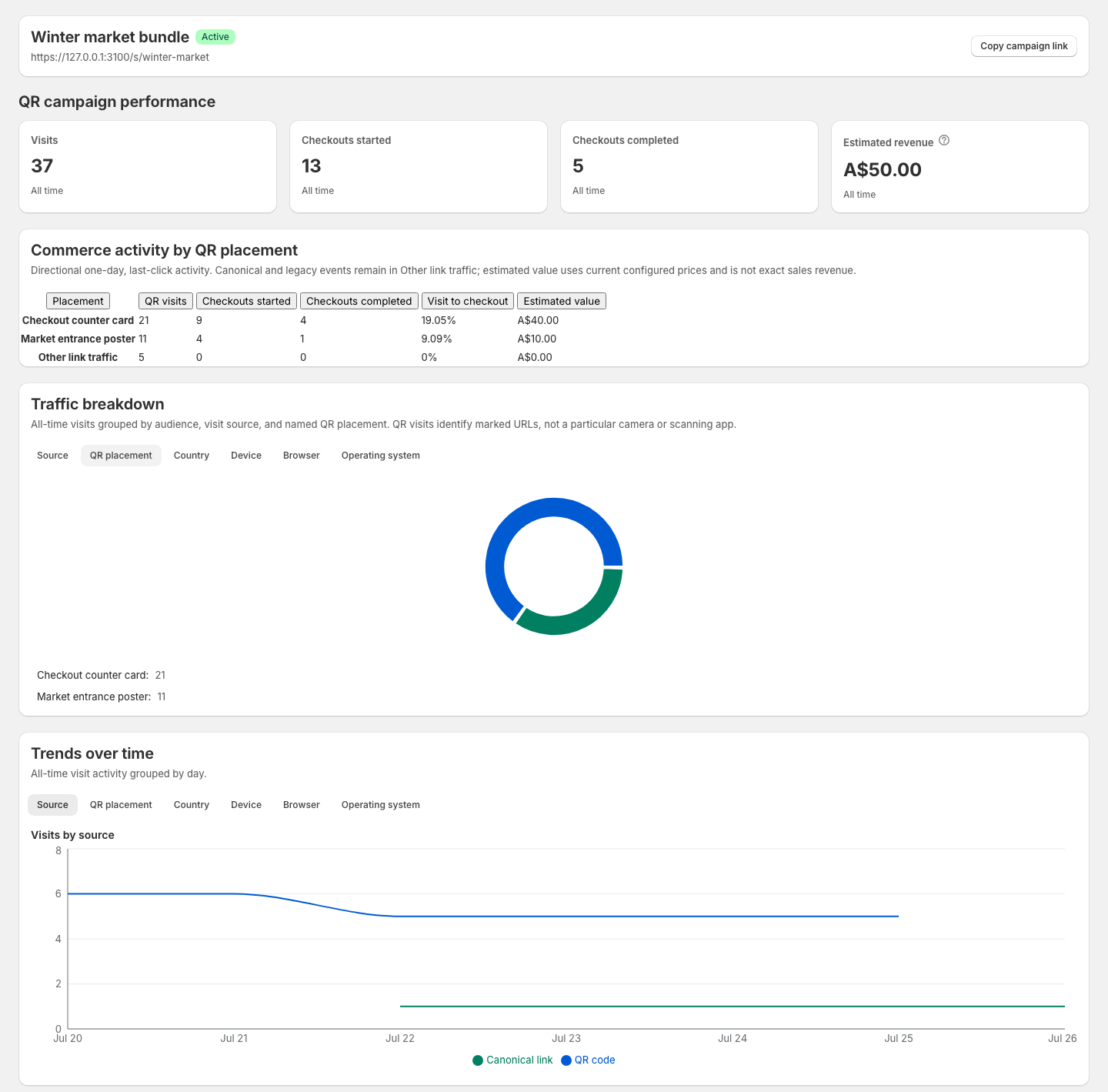
Measure Shopify Campaign Links Across Social, Email, and Creators

Use this workflow to give each meaningful digital campaign its own FlashWombat short link, launch it with consistent campaign labels, and review visits alongside directional checkout activity.

The result is not perfect attribution. It is a repeatable way to answer a focused question such as “Did this creator link receive enough attention to test again?” or “Did shoppers who opened the email campaign link move toward checkout?”

Write one question before you create the link.

Examples:

  • Did the Instagram launch post receive visits during the launch window?
  • Did a subscriber email lead to supported checkout activity?
  • Did one creator placement receive more attention than another?
  • Did a product-page journey behave differently from a ready-cart journey?

Create separate links only when you need to preserve a useful distinction. One link for every minor variation creates reporting work without necessarily improving the decision.

Use this planning table for each link:

DecisionExample
Campaign questionDid the subscriber email move shoppers toward checkout?
Internal link nameWinter launch — Email — Subscribers
DestinationWinter collection
Channel or partnerEmail
Launch window1–7 August
Campaign ownerStore marketing lead
Next review8 August

Choose the Shopper Destination

Match the destination to what the campaign promises:

  • Choose a product when shoppers need details, variants, availability, or education.
  • Choose a collection when the message promotes a range, season, category, or gift guide.
  • Choose a ready cart when the campaign specifies exact products, variants, and quantities.

For a ready cart, check every selected variant and quantity. If the link carries an existing Shopify discount code, create and test the discount in Shopify first. FlashWombat can include the supplied code in the shopper journey, but Shopify decides whether the discount is valid and whether the shopper is eligible.

Plan Names, Tags, and UTM Parameters

Use each field for its intended job.

Name

The Name is visible to store staff. Use a convention your team can recognize after the campaign ends:

[campaign] — [channel or partner] — [placement or message]

Examples:

  • Spring launch — Instagram — Reel
  • Spring launch — Email — Subscribers
  • Spring launch — Creator Maya — Product review

Tags

Tags help store staff organize and find links in FlashWombat. Add a shared campaign tag such as spring-launch, then add a useful channel or partner tag such as email or creator-maya.

Tags do not combine several links into one attribution report. Each link keeps its own performance page.

UTM Parameters

UTM parameters carry campaign labels into the destination for analytics tools that use them. Keep the values consistent:

FieldSuggested useExample
utm_sourcePlatform, publication, or partnerinstagram
utm_mediumChannel typesocial
utm_campaignShared campaign namespring_launch
utm_termOptional audience or targeting detailreturning_customers
utm_contentOptional creative or placementproduct_demo_reel

UTM parameters describe campaign context. They do not identify a shopper, connect activity across devices, or prove that a later order came from one campaign.

  1. In FlashWombat, open Short links.
  2. Under What do you want to share?, choose a starting template:
    • Promote a product for a focused product page.
    • Build a ready-to-buy cart for selected products and quantities.
    • Showcase a collection for a curated range.
    • Select Create from scratch when the campaign needs another supported configuration.
  3. In Link details, enter the internal Name.
  4. Review the generated short code and Link preview. Choose a connected branded domain when your current plan and setup allow it.
  5. Under Destinations, select the product, collection, or cart contents.
  6. Open Marketing and sharing and select Show options.
  7. Configure the Social preview when the shared link needs a campaign-specific title, description, or image.
  8. Add the planned Tags.
  9. Enter the planned UTM Parameters.
  10. Under Status, keep Active — visitors can use this short link selected for an immediate launch. Configure the schedule or lifecycle fallbacks when the campaign has defined start, pause, or end behavior.
  11. Save the link with Shopify's save bar.

After creation, the link appears under Your short links. The campaign name, visit count, tags, View performance link, and copy action are available from this list.

Test the Complete Shopper Journey

Test before the campaign is distributed:

  1. Copy the saved public short link.
  2. Open it on a phone using a private browser window.
  3. Confirm that the public address opens the intended product, collection, or ready cart.
  4. Check products, variants, quantities, and mobile presentation.
  5. For an offer, continue far enough to confirm Shopify's current discount behavior.
  6. Confirm the destination contains the expected UTM parameters when you configured them.
  7. Share the link only after the entire path matches the campaign promise.

If a social or messaging preview matters, test it before the broad launch. Platforms can cache preview information and may crop or display it differently.

Launch Without Losing the Campaign Context

Record the following when the link goes live:

  • Public short link.
  • Internal campaign name.
  • Channel, creator, or placement.
  • Audience and approximate distribution.
  • Destination and offer.
  • Launch and planned end time.
  • Campaign owner.

Do not silently reuse the same link for an unrelated campaign. If you change the destination, offer, or audience, record the time of the change so the all-time report remains understandable.

  1. Open Short links.
  2. Find the campaign under Your short links.
  3. Select View performance.
  4. Confirm the campaign name, public URL, and Active or Inactive status.
  5. Review the Performance cards.
  6. Review Traffic breakdown when visits are available.
  7. Review Trends over time when the current plan includes daily trends.

If analytics are unavailable for the current plan, FlashWombat shows Analytics aren't available on this plan and a View plans action.

Interpret the Performance Metrics

Visits

Visits count recorded openings of the short-link address. They do not represent verified unique people. A person can open the link more than once, and automated-traffic filtering does not make every remaining visit a unique shopper.

Checkouts started

Checkouts started count supported checkout-started events associated with recent campaign context. Use this as a directional signal that the campaign link may have helped a shopper move further into the buying journey.

Checkouts completed

Checkouts completed count supported completed-checkout events associated with recent campaign context. They do not prove that a particular campaign caused a particular order.

Estimated revenue

Estimated revenue uses directional completed-checkout activity and the current prices of products configured for the link. It is not exact Shopify order revenue.

Use Shopify's order records when you need actual orders, customers, or revenue.

Understand the Attribution Boundary

FlashWombat uses recent, visit-bound campaign context for supported checkout activity. The attribution window is one day.

The result is not:

  • Person-level attribution.
  • Cross-device attribution.
  • Multi-touch attribution.
  • Order-level attribution.
  • Proof that the link caused a sale.

Tracking can also be incomplete when the necessary visit context or supported Shopify tracking event is unavailable. A tracking failure should not interrupt the shopper's checkout.

Keep these limits attached to the metric when sharing a report with a creator, agency, or internal team.

Use Traffic Breakdowns Carefully

The all-time Traffic breakdown can group visits by:

  • Source.
  • Country.
  • Device.
  • Browser.
  • Operating system.
  • QR placement when named QR placements exist.
  • Lifecycle outcome when fallback traffic exists.

These dimensions describe recorded visits. They do not turn the report into a demographic profile or establish why someone purchased.

The Source breakdown distinguishes how a FlashWombat address was opened, such as the ordinary short-link address or a marked QR address. It does not automatically infer that an ordinary short-link visit came from email, Instagram, or a specific creator. Use separate links, clear internal names, and consistent UTM parameters when those distinctions matter.

Compare Campaigns Responsibly

FlashWombat gives each short link its own performance report. When reviewing several campaign links:

  1. Compare links that had similar purposes and launch windows.
  2. Keep audience size, distribution, spend, offer, stock, and creative differences visible.
  3. Review visits before checkout activity so low distribution is not mistaken for a weak shopper journey.
  4. Record destination or offer changes that affect the all-time totals.
  5. Choose one next action: repeat, revise, pause, or collect more evidence.

Avoid ranking a year-old evergreen link against a one-day launch using all-time totals alone. Daily trends can help when available, but the campaign log remains important.

Troubleshoot Missing or Confusing Data

The campaign has no visits

Open the public link yourself and confirm that it is active and reaches the expected destination. Then confirm that the exact FlashWombat short link—not only the final Shopify destination—was placed in the campaign.

Visits appear but checkout activity does not

This can mean shoppers did not reach checkout, or that supported recent campaign context was unavailable. Check the destination, product availability, mobile experience, offer, campaign message, and tracking prerequisites before drawing a conclusion.

The channel is not named in Source

Source is a FlashWombat redirect-source breakdown, not an automatic marketing-channel classifier. Use one link per channel or partner when that distinction matters, and use UTM parameters for downstream tools.

Daily trend access depends on the current plan. Use the visible all-time metrics and review View plans if daily breakdowns are required.

Complete the Review

The campaign review is complete when the team can state:

  • What the link represented.
  • When and where it was distributed.
  • What visits and supported checkout signals showed.
  • What the data could not prove.
  • What will change in the next campaign.

For the broader measurement framework, read How to Track Shopify Marketing Links Without Overstating Results. To evaluate FlashWombat's campaign-reporting approach, see Shopify Link Tracking for Campaign Decisions.